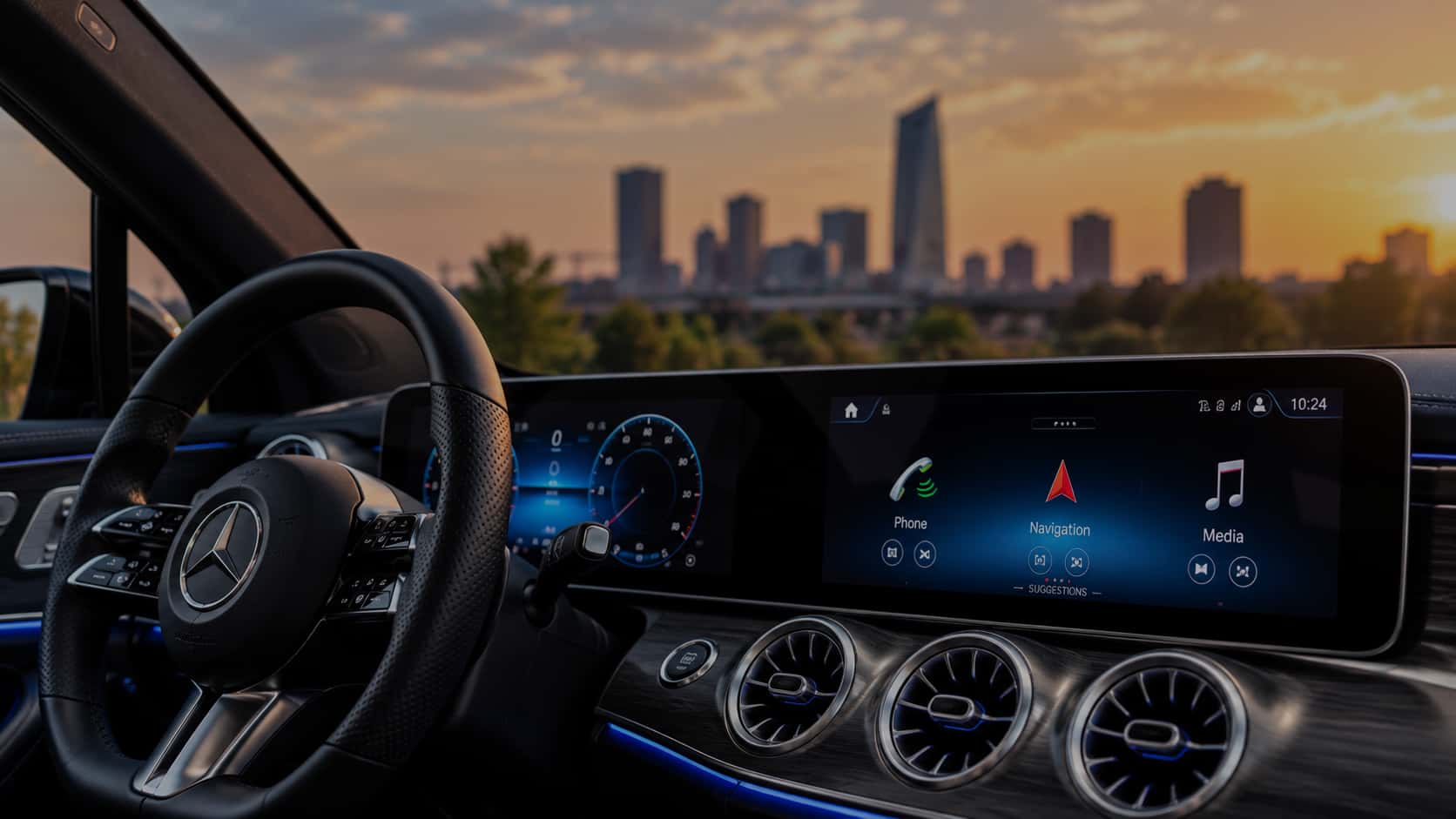
How to Connect Your Phone to Mercedes-Benz Bluetooth & MBUX
Mercedes-Benz Bluetooth® Pairing Guide for iPhone and Android
Connecting your smartphone to your Mercedes-Benz allows you to enjoy hands-free calling, stream music, access compatible phone features, and stay connected while driving.
Whether you're pairing an iPhone, connecting an Android phone, or troubleshooting a Bluetooth® connection, Mercedes-Benz of Oklahoma City is here to help.
Many Mercedes-Benz vehicles feature the Mercedes-Benz User Experience (MBUX) infotainment system, which makes connecting your smartphone quick and convenient. Follow the instructions below to pair your phone with your Mercedes-Benz and get the most out of your vehicle's connectivity features.
How to Pair Your Phone with Mercedes-Benz MBUX Using Bluetooth®
For many Mercedes-Benz vehicles equipped with MBUX, connecting a smartphone through Bluetooth® takes just a few steps.
Step 1: Turn On Bluetooth® on Your Smartphone
Before beginning, make sure Bluetooth® is enabled on your phone.
For iPhone:
Open Settings.
Select Bluetooth®.
Turn Bluetooth® on.
Keep the Bluetooth® settings screen open while pairing.
For Android:
Open Settings.
Select Connected Devices, Connections, or Bluetooth®, depending on your phone.
Turn Bluetooth® on.
Make sure your phone is available for pairing.
Step 2: Open the Phone Menu in Your Mercedes-Benz
With your vehicle safely parked:
Turn on your Mercedes-Benz multimedia system.
From the MBUX home screen, select Phone.
Open the device management or connection menu.
Select Connect New Device or the corresponding option to add a phone.
The exact menu names and locations may vary depending on your Mercedes-Benz model, model year, and MBUX version.
Step 3: Select Your Smartphone
Your Mercedes-Benz will search for available Bluetooth® devices.
Locate your smartphone in the list of available devices.
Select your phone.
A pairing code should appear on your Mercedes-Benz display and smartphone.
Confirm that the codes match.
Approve the pairing request on your phone.
Step 4: Allow Access to Contacts and Phone Features
Your smartphone may request permission to share contacts, call history, or other supported information with your Mercedes-Benz.
Approve the permissions you want to use.
Allowing contact access can make it easier to place calls through your vehicle's multimedia system.
Step 5: Confirm Your Bluetooth® Connection
Once connected, your phone should appear in the Mercedes-Benz multimedia system as a paired device.
Depending on your vehicle and phone, you may now be able to:
Make and receive hands-free phone calls
Access compatible phone contacts
Stream music and other audio
Use supported voice-command features
Access supported messaging functions
Your phone may reconnect automatically when you enter and start your Mercedes-Benz, provided Bluetooth® is enabled and the devices remain paired.
Mercedes-Benz Bluetooth® Pairing Video Tutorial
Prefer to follow along visually?
Watch our Mercedes-Benz Bluetooth® pairing tutorial for a demonstration of how to connect a compatible smartphone to the MBUX infotainment system.
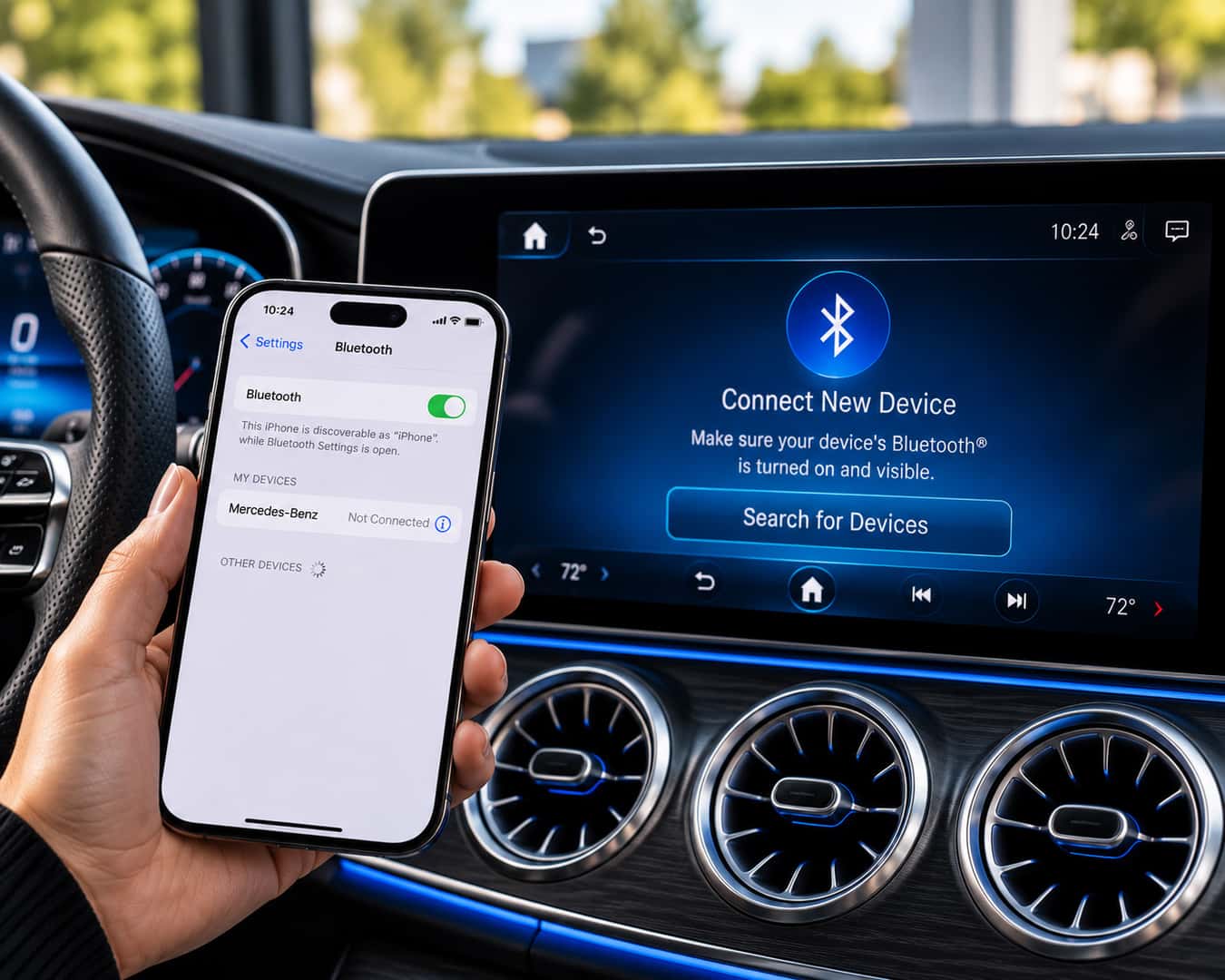
How to Connect an iPhone to Mercedes-Benz Bluetooth®
If you're using an Apple iPhone, connecting to your Mercedes-Benz is generally straightforward.
- Enable Bluetooth® under your iPhone's Settings.
- Open the Phone menu on your Mercedes-Benz multimedia display.
- Select the option to connect a new device.
- Choose your iPhone from the available devices.
- Verify the pairing code and confirm the connection.
- Allow access to contacts and other supported features if desired.
Once paired, your iPhone can be used for supported hands-free calls and Bluetooth® audio.
Helpful Tip: If your iPhone was previously connected to another vehicle or device, verify that it is connecting to the correct Mercedes-Benz system.
How to Connect an Android Phone to Mercedes-Benz Bluetooth®
Mercedes-Benz MBUX also supports Bluetooth® pairing with compatible Android smartphones, including many Samsung Galaxy and Google Pixel devices.
- Open Bluetooth® settings on your Android phone.
- Make sure Bluetooth® is turned on.
- Open the Phone menu on your Mercedes-Benz display.
- Select Connect New Device.
- Choose your Android phone from the available devices.
- Confirm the matching pairing code.
- Approve any desired contact or calling permissions.
After pairing, your Android phone should be available for supported hands-free calling and Bluetooth® audio functions.
Menu names may vary depending on your phone's manufacturer and Android version.
Mercedes-Benz Bluetooth® vs. Apple CarPlay® and Android Auto™
Bluetooth®, Apple CarPlay®, and Android Auto™ are related connectivity features, but they don't all work the same way.
Bluetooth® Connectivity
Bluetooth® allows compatible smartphones to connect wirelessly to your Mercedes-Benz for supported functions such as hands-free calling and audio streaming.
Apple CarPlay®
Apple CarPlay® allows compatible iPhones to display and operate supported apps through the vehicle's multimedia system. Depending on your Mercedes-Benz model and equipment, Apple CarPlay® may require a USB connection or support wireless connectivity.
Android Auto™
Android Auto™ provides compatible Android users with access to supported smartphone apps, navigation, communication, and audio features through the vehicle's display. Connection requirements vary by model and equipment.
Important: Successfully pairing your phone through Bluetooth® does not necessarily mean Apple CarPlay® or Android Auto™ is activated. Smartphone integration may require a separate connection or setup process.
Mercedes-Benz Bluetooth® Not Connecting? Try These Troubleshooting Tips
If your phone won't connect to your Mercedes-Benz, a few simple checks may help resolve the issue.
1. Confirm Bluetooth® Is Enabled
Make sure Bluetooth® is turned on in both your smartphone and your Mercedes-Benz multimedia system.
2. Check Whether Your Phone Is Already Connected
Your phone may already be connected to another Bluetooth® device. Review your smartphone's Bluetooth® settings and select the correct vehicle connection.
3. Restart Your Smartphone
Restarting your phone can sometimes resolve temporary connectivity issues.
4. Remove the Existing Bluetooth® Pairing
If your phone was previously connected but no longer pairs correctly, removing the existing connection and pairing again may help.
On your smartphone, locate the Mercedes-Benz connection in Bluetooth® settings and select Forget This Device, Unpair, or the equivalent option.
In your Mercedes-Benz multimedia system, locate the paired device and select the available option to disconnect or delete it.
Then repeat the pairing process.
5. Check Your Phone's Software
Make sure your smartphone is running a supported, up-to-date operating system.
6. Check Your Mercedes-Benz Multimedia Settings
Review the vehicle's Bluetooth® and device connection settings to confirm the system is available for pairing.
7. Contact Mercedes-Benz of Oklahoma City
If your phone still won't connect, our team can help you review your vehicle's connectivity features and determine the next steps.
Frequently Asked Questions About Mercedes-Benz Bluetooth®
How do I connect my phone to my Mercedes-Benz?
For many Mercedes-Benz vehicles equipped with MBUX, open the Phone menu on your vehicle's display, select Connect New Device, choose your smartphone, and confirm the Bluetooth® pairing code on both devices. The exact steps may vary by model and year.
Why won't my phone connect to Mercedes-Benz Bluetooth®?
Common causes include Bluetooth® being disabled, an outdated pairing, a connection to another device, or a temporary software issue. Try checking Bluetooth® settings, restarting your phone, and removing and recreating the pairing.
Can I connect an iPhone to Mercedes-Benz MBUX?
Yes. Compatible iPhones can connect to Mercedes-Benz MBUX through Bluetooth® for supported functions such as hands-free calling and audio streaming.
Can I connect a Samsung or Android phone to my Mercedes-Benz?
Yes. Many compatible Android phones, including Samsung Galaxy and Google Pixel devices, can connect to Mercedes-Benz multimedia systems using Bluetooth®.
Can I play music through Mercedes-Benz Bluetooth®?
Yes. Compatible Mercedes-Benz multimedia systems support Bluetooth® audio streaming. Once your phone is paired, select the appropriate Bluetooth® audio source in the vehicle's media menu.
Can two phones be connected to Mercedes-Benz Bluetooth® at the same time?
Some Mercedes-Benz multimedia systems support a two-phone mode. Available functions and the ability to use both phones simultaneously depend on the vehicle's equipment and software.
Why are my contacts not showing in my Mercedes-Benz?
Your phone may not have permission to share contacts with the vehicle. Check your smartphone's Bluetooth® connection settings and enable contact sharing if available. You may also need to review contact permissions in your Mercedes-Benz multimedia system.
Does Mercedes-Benz Bluetooth® automatically reconnect?
Many Mercedes-Benz vehicles can automatically reconnect to a previously paired phone when Bluetooth® is enabled and the phone is within range. Reconnection behavior depends on the vehicle, phone, and connection settings.
Is Mercedes-Benz Bluetooth® the same as Apple CarPlay®?
No. Bluetooth® primarily supports compatible wireless calling and audio features. Apple CarPlay® provides additional smartphone integration, including supported apps and navigation through the vehicle's multimedia display.
Do I need the Mercedes-Benz app to pair my phone with Bluetooth®?
Generally, no. Standard Bluetooth® phone pairing is handled through your smartphone and the vehicle's multimedia system. The Mercedes-Benz app provides separate connected vehicle features and services.
Can Mercedes-Benz of Oklahoma City help me connect my phone?
Yes. If you need help understanding your vehicle's technology or pairing a compatible smartphone, contact Mercedes-Benz of Oklahoma City. Our team can help you find the appropriate instructions for your vehicle.
Need Help with Your Mercedes-Benz Technology?
Your Mercedes-Benz offers a wide range of technology designed to make your ownership experience more convenient and enjoyable.
Whether you're setting up Bluetooth® for the first time, learning more about MBUX, or exploring features you haven't used before, Mercedes-Benz of Oklahoma City is here to help.
Explore our Mercedes-Benz Owner Resources for additional tutorials, vehicle technology guides, and ownership information.
The Bluetooth® word mark and logos are registered trademarks owned by Bluetooth SIG, Inc. and any use of such marks by Mercedes-Benz USA, LLC is under license.
Bluetooth®, smartphone integration, menu options, and available features vary by Mercedes-Benz model, model year, equipment, software version, and smartphone compatibility. Always perform device setup while safely parked. Refer to your vehicle's Operator's Manual for model-specific instructions.